Open your first project
This page walks you through the first visit to dbt UI: telling it who you are, opening a dbt project from git, and setting up the Python environment that runs dbt.
Before you start
Check that your dbt project meets these requirements:
- It's in a git repository. dbt UI opens projects either by cloning a git URL or from a repository that's already on the server.
profiles.ymlis in the project folder, next todbt_project.yml. dbt UI runs dbt with--profiles-dirpointing at the project folder, so aprofiles.ymlin~/.dbtisn't used. Keep passwords out of it withenv_var().- Your dbt adapter is in a
requirements.txtin the project folder (for exampledbt-postgresordbt-snowflake). dbt UI doesn't contain dbt-core or any adapter: it installs the versions your project asks for from PyPI (see step 3 below).
1. Set your git identity
The first time you open dbt UI in a browser, it asks for your Name and Email ("Welcome to dbt UI"). Enter them and click Continue.
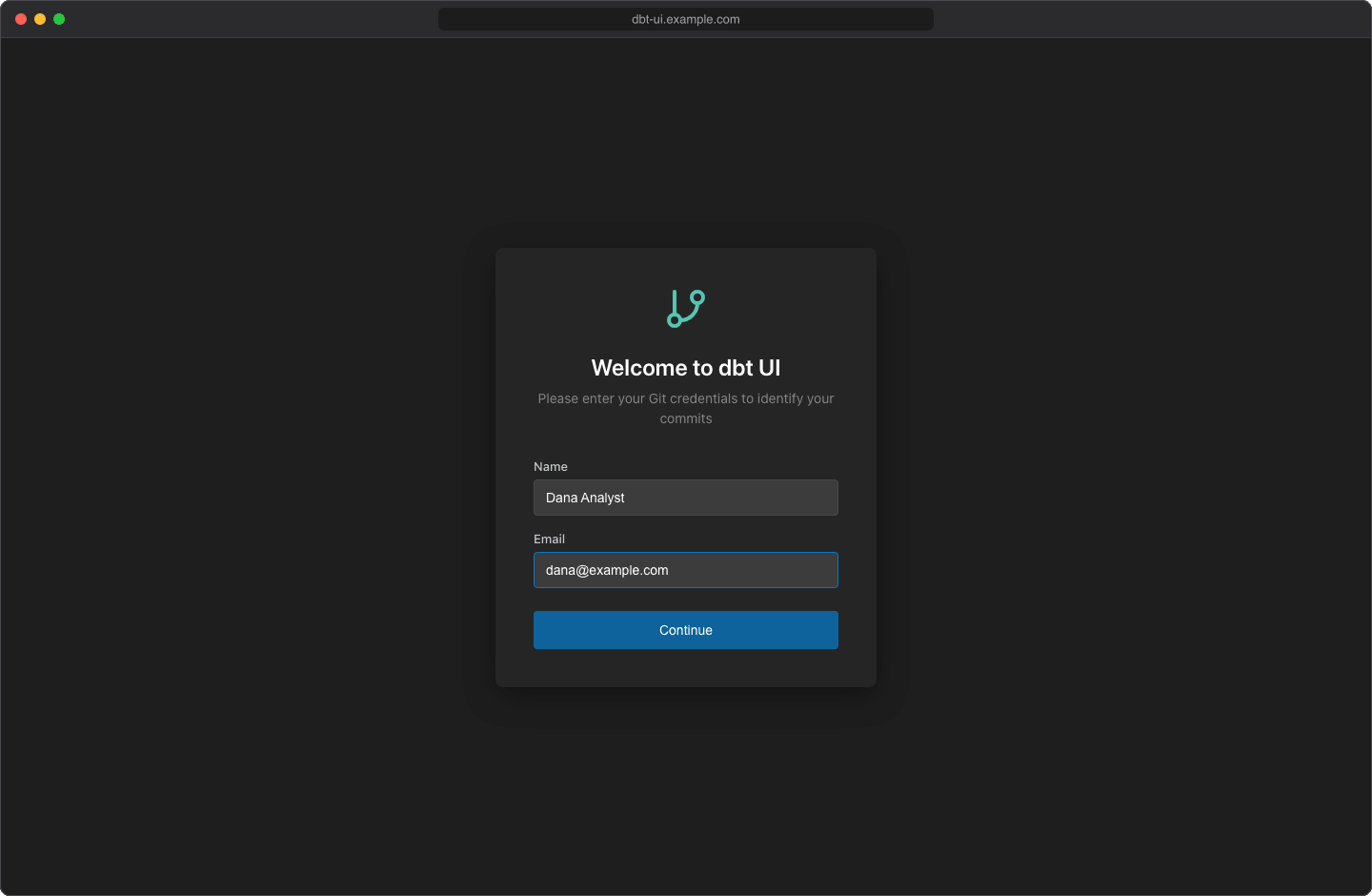
dbt UI uses your identity to:
- author your commits,
- name your personal branch and workspace (see Your personal workspace),
- show who started a run in the scheduler.
Your identity is stored in this browser only (local storage), not on the server. If you use a different browser or clear site data, dbt UI asks again.
To change it later, click your name in open as your name on the project screen. The dialog opens as "Edit Profile"; click Save Changes.
Changing your name changes your workspace
Your branch and workspace are named after your name. If you change it, the next project you open uses a new branch and workspace, and your previous work stays on the old branch. Use the same name in every browser you use.
2. Open a repository
On the "Open a dbt project" screen, enter a git URL or a path in the input and click Open Project.
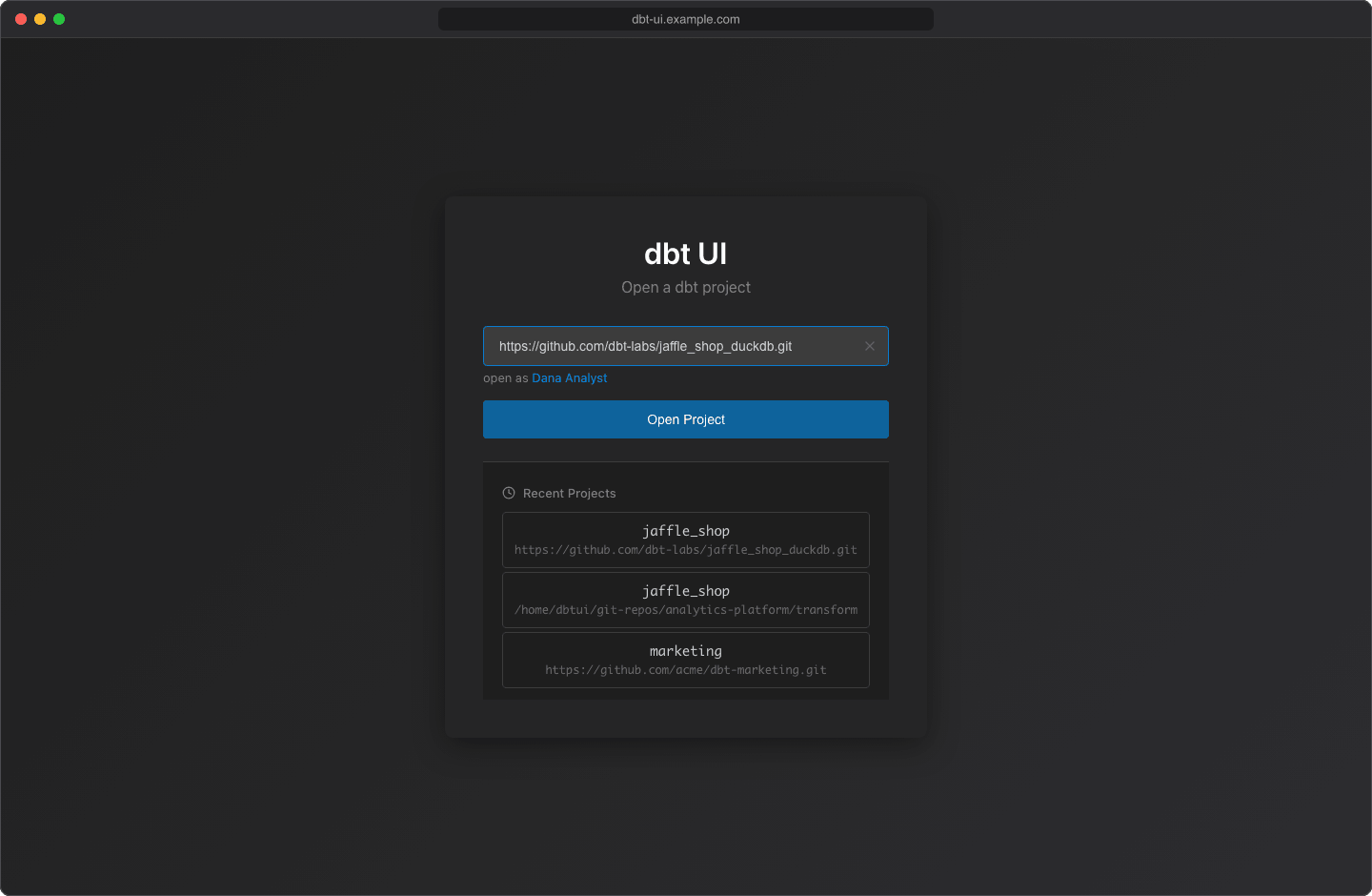
Enter the repository's URL, for example https://github.com/your-org/analytics.git. dbt UI treats the input as a git URL when it starts with http://, https://, git@ or git://, or ends with .git.
dbt UI clones the repository into its repositories folder on the server (./git-repos by default, see Install with Docker). The repository is cloned once and shared by all users; if someone already cloned it, dbt UI fetches the latest changes instead.
You can paste a GitHub or GitLab page address instead of the clone URL: dbt UI strips page paths such as /pulls or /-/merge_requests and clones the repository.
Enter the path of a dbt project folder on the server, or click the folder button (Browse folders) to pick one. The browser starts in the repositories folder and marks folders that contain a dbt_project.yml with a dbt badge. Open a folder by clicking it, then click Select Current Folder.
The path must contain a dbt_project.yml, otherwise you'll see "Not a valid dbt project (dbt_project.yml not found)". The folder can be a subfolder of a repository: dbt UI then opens that subfolder in your workspace.
The folder browser also lists your recent projects.
The progress bar shows the steps: cloning or validating, then "Setting up workspace...". When it's done, the project opens.
Private repositories
For an https:// URL that needs authentication, dbt UI shows an Authentication Required dialog:
- Enter your Username and Password / Token. For GitHub, use a personal access token, not your password.
- Leave Remember credentials checked to save them for later pulls and pushes.
- Click Submit.
Remembered credentials are kept in a cookie in your browser for 30 days by default (DBT_UI__BACKEND_GIT_CREDS_COOKIE_MAX_AGE), one per repository. Next time the dialog offers Use Saved Credentials (username). See Git for details.
For git@ (SSH) URLs, dbt UI doesn't ask for credentials: the backend's own SSH setup has to have access. Otherwise opening fails with "Authentication failed. Check your SSH keys or credentials."
Repositories with several dbt projects
If the dbt project isn't at the root of the repository, open the folder that contains it with a GitHub or GitLab folder URL:
- GitHub:
https://github.com/your-org/analytics/tree/main/transform - GitLab:
https://gitlab.com/your-org/analytics/-/tree/main/transform
dbt UI clones the whole repository and opens the transform folder as the project. The branch name in the URL only identifies the folder: your workspace is still on your own branch.
Other git hosts don't support a folder in the URL. For those, open the project from the server instead: once the repository is in the repositories folder, enter or browse to the project's folder inside it (see Use a repository on the server above). dbt UI opens that folder in your workspace.
3. Create the virtual environment
Each workspace runs dbt from its own Python virtual environment. When a project has none yet, the Create virtual environment button at the bottom of the sidebar glows, and the lineage panel shows "Virtual environment not found."
- Click Create virtual environment in the sidebar.
- Confirm with Create. This can take a few minutes.
dbt UI then:
- creates the environment in a
.dbt-ui-venvfolder inside your workspace, - installs the packages listed in the project's
requirements.txtfrom PyPI, if there is one, - installs
dbt-corefrom PyPI in the version allowed byrequire-dbt-versionindbt_project.yml; without it, the version fromrequirements.txtis kept, or the latest is installed if neither sets one, - runs
dbt deps, with your env vars, if the project has apackages.ymlordependencies.yml.
require-dbt-version can be an exact version ("1.8.0" or "=1.8.0"), a range (">=1.5.0") or a list of constraints ([">=1.5.0", "<2.0.0"]), all of which must hold. If dbt UI can't read the value, it installs the latest dbt-core.
A dialog shows the output when it finishes. Until the environment exists, the run, test, seed and compile buttons and the Env Vars button aren't available.
Use the same button later to rebuild the environment, for example after changing requirements.txt or packages.yml: it deletes the existing environment and creates it again.
If the project asks for a Python version (.python-version, or requires-python in pyproject.toml), uv downloads that version once and keeps it in the repositories folder (hidden .dbt-ui/python), so it survives dbt UI upgrades. Otherwise the environment uses dbt UI's own Python. When an environment can no longer run, because its Python is missing or dbt UI's Python was upgraded to another version, it shows as missing and the button glows again.
Ignore the environment folder in git
Add .dbt-ui-venv/ to your project's .gitignore, together with target/, dbt_packages/ and logs/. Otherwise these folders show up as untracked changes in the Git dialog.
Your personal workspace
dbt UI never edits the shared clone directly. When you open a project, it creates:
- a branch for you, named after your name:
Jane Doebecomesjane-doe-main. It starts from the commit the shared clone has checked out (normally the latest default branch). - a git worktree for that branch, a separate folder on the server in a
worktreesfolder next to the clone.
Everything you do (editing, running dbt, committing) happens in your worktree, so your changes don't affect other users until you push them. If you open the same project again, dbt UI reuses your branch and worktree.
The sidebar shows your current branch under the project name. Hover the question mark next to it to see the path of your worktree.
Note
Workspaces are matched by name. Two people who enter the same name share one workspace, so make sure everyone uses a distinct name.
Switch projects
Click Select another project at the bottom of the sidebar and confirm with Switch project. If the editor has unsaved changes, the dialog warns you that they will be lost.
The project screen lists your Recent Projects (the last three you opened in this browser). A project is added to the list when it opens. Clicking one fills in its URL or path; click Open Project to open it.
When you reload the page, dbt UI reopens the project you had open, as long as it still exists on the server. Both the recent list and the last project are stored in your browser.
Next
- Find your way around the project browser
- Set values for env vars used in
profiles.yml - Run dbt