Running dbt
Run, test, seed and compile from the lineage panel header. dbt runs on the server, in your personal workspace, with the project's virtual environment and your env vars.
Before you start
- The project needs a virtual environment.
- dbt UI must find at least one target in the
profiles.ymlin the project folder. The target dropdown appears in the lineage panel header when it does. - Set your env vars if
profiles.ymlusesenv_var().
If any of these is missing, the buttons stay disabled.
Run a command
- Select a file in the project browser or a node in the lineage graph:
- a SQL model (a
.sqlfile in amodelsfolder) for Compile, Run and Test, - a CSV file in a
seedsfolder for Run, which then seeds it.
- a SQL model (a
- Pick the target in the dropdown ("Select dbt target"). It starts at the default target of your profile.
- Click Compile, Run or Test. If the editor has unsaved changes, dbt UI first asks whether to save them.
- The dialog ("Run dbt on target "dev"") is pre-filled with the selected model or seed. Change the selector if you like:
- leave it empty to select all models (or all seeds),
- use dbt selector syntax, for example
+model_name(with its ancestors),model_name+(with its descendants),tag:dailyorpath:models/staging.
- For Run and seeds, check Full Refresh to add
--full-refresh. - Click the action button (or press Enter). Esc cancels.
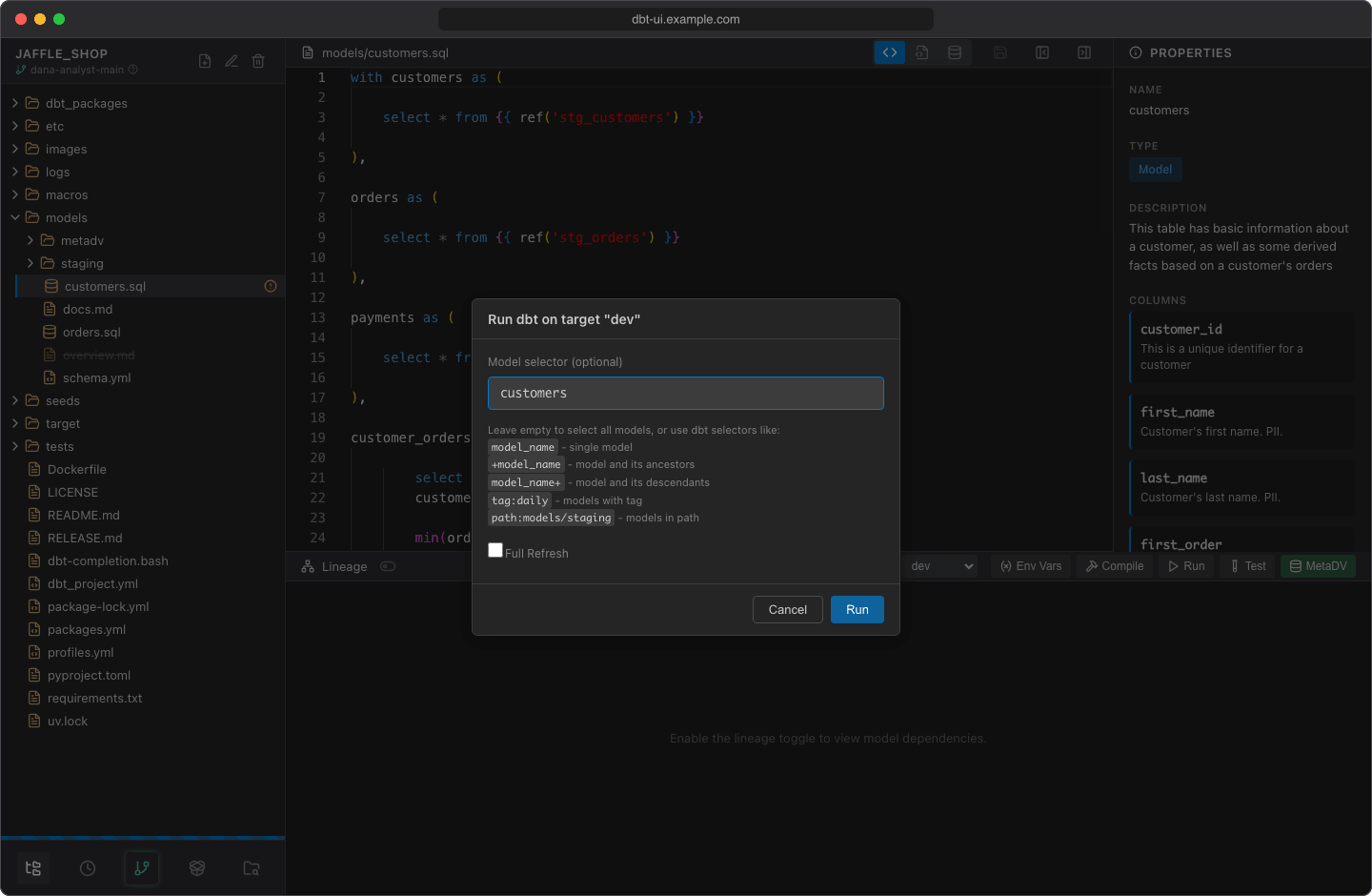
dbt UI runs, for example:
The selector accepts letters, digits, spaces and _ . : + @ * - / ,. Other characters are rejected with "Invalid characters in selector."
While it runs
The command runs in the background:
- the models it affects show a spinner in the file tree, and a progress bar appears at the bottom of the sidebar,
- the dbt buttons, Env Vars and Create virtual environment are disabled.
Only one command runs in your workspace at a time. Your other workspaces and other users aren't blocked; with the scheduler on, they share its concurrency limit (see below).
You can keep editing and browsing in the meantime.
Results
When the command finishes, a dialog shows the result: "dbt run completed" or "dbt run failed", with dbt's output below. Click Copy to copy the output, and OK (or Enter / Esc) to close it.
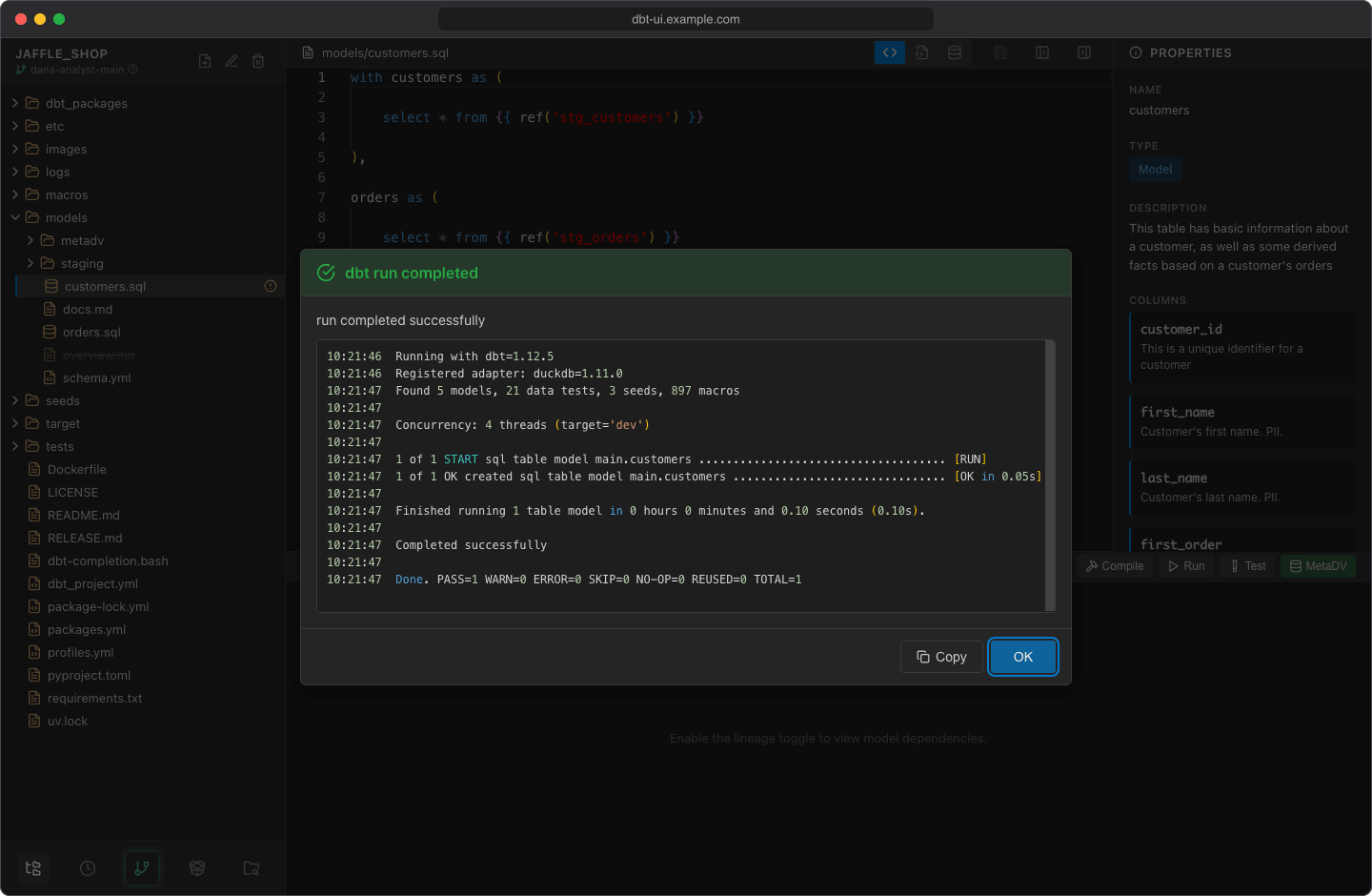
Afterwards dbt UI refreshes the file tree (so new files in target/ show up), and the lineage graph, properties panel and Compiled SQL view pick up the new manifest.
Timeouts
A command started from the editor stops after 5 minutes (300 seconds) by default and fails with a message that names the limit, for example "dbt run timed out after 5 minutes (DBT_UI__SCHEDULER_MANUAL_TIMEOUT)".
Administrators can change this limit with DBT_UI__SCHEDULER_MANUAL_TIMEOUT (in seconds, default 300), with or without the scheduler. With the scheduler, the time a run waits in the queue doesn't count.
With the scheduler on
When the scheduler is enabled (the default setup), commands from the editor run through it:
- They're recorded. Each command appears in the scheduler's runs as a manual run, with your name, the command, selector, target, output and results.
- They share the concurrency limit. At most
DBT_UI__SCHEDULER_MAX_CONCURRENTdbt runs (default2) execute at once, scheduled and manual together. When all slots are busy, your command is queued and starts as soon as one frees up. In the editor it looks the same as running. - The memory cap applies. If an administrator set
DBT_UI__SCHEDULER_MAX_MEMORY, it limits manual runs too (see Sizing memory and concurrency).
Without the scheduler, commands run directly and aren't recorded anywhere.
Tip
If your command seems to take long before it starts, other runs are probably using all slots. Open the scheduler to see what's running.